
Special Account Handling: Wisepress Consignment Sales Reports | VA01 |
Version History
Version | Date | Description |
1.0 | August 2023 | initial version |
|
|
|
|
|
|
Related Documents
Example of Sales Report: 
2nd Level Control Spreadsheet: 
TABLE OF CONTENTS
Functional Description
On a monthly basis, SNCS 2nd Level (Heidelberg, Trade ROW Books team) receives the Sales Report for the consignment account of Wisepress (sent over by the responsible sales manager) and sends an e-mail with a Special Task for Straive to process a separate invoice for each exhibition (or conference). The sales report will be sent over by the sales manager to the following e-mail inbox: ROW-NWEuropeOceania@springer.com, and therefore it’ll create a Freshdesk ticket, which should be kept on hold until all activities described hereunder are successfully finished.
We must invoice Wisepress with prices valid on the date of the consignment order. This task is divided in at least two steps: 1st level activity for the order entry and 2nd level activity for the order conference and release. If necessary, SNCS HD will request stock adjustments to IT before releasing an order for invoicing. Straive should only mind the 1st part of this document.
On Freshdesk, it should be categorised as follows:
Group: Trade_ROW_Books
BPID: 3004956132
Category: Trade Books
Query Type: Order
Sub-Type: Consignment
Functional Specification
1st Part: Order Entry by Straive
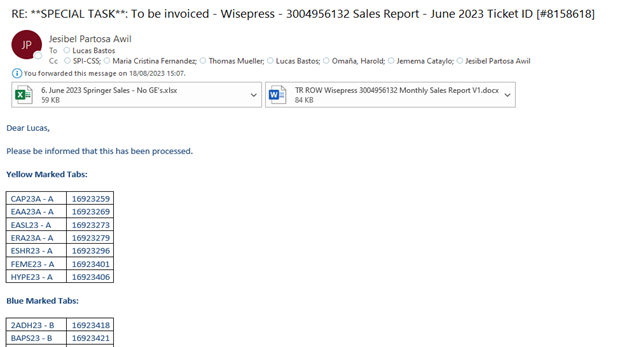
The source of information for the order input is the Excel spreadsheet of the Sales Report, which will be divided in tabs (one for each exhibition) and provided to Straive by SNCS HD through a Special Task email. See below the contacts and model of this email (which will be sent by 2nd Level SNCS):
Subject: **SPECIAL TASK**: To be invoiced - Wisepress - 3004956132 Sales Report – [MONTH AND YEAR OF THE SALES REPORT] Ticket ID [#FRESHDESK TICKET NUMBER]
TO: SPI-CSS <SPI-CSS@springernature.com>
C/C: Maria Cristina Fernandez <mariacristina.fernandez@springer.com>; Thomas Mueller <thomas.mueller.2@springernature.com>; Jemema Cataylo <jemema.cataylo@springer.com>; Omaña, Harold <DickHaroldSadim.Omanian@springer.com>; Lucas Bastos lucas.bastos@springernature.com
Attachments: this very instruction manual and the above-mentioned Sales Report spreadsheet.
Example of how this e-mail will be sent:
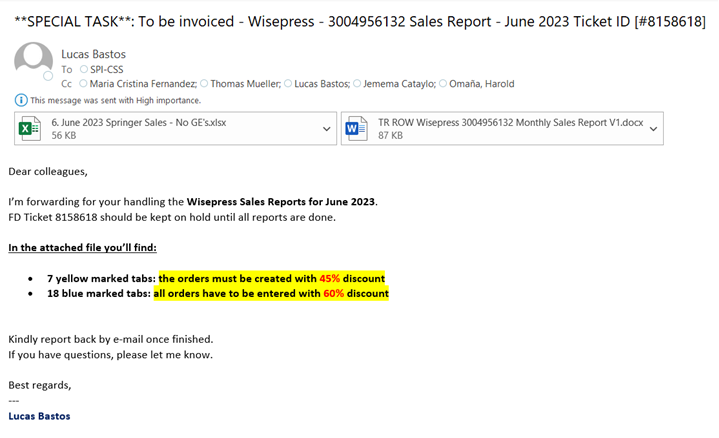
Straive must reply acknowledging the receipt of the email to everyone in copy.
IMPORTANT NOTE: Currently we have two types of exhibitions, yellow and blue. The distinction between those two is the discounts applied to each one. For yellow exhibitions we grant 45% discount and for blue exhibitions we grant 60% discount. How to process these discounts will be further explained on page 8.
However, it’s important to highlight that these discounts may be changed by request of the sales manager. In case this is necessary, SNCS HD will inform you accordingly in the Special Task’s email.
Open SAP-MPS and proceed to input the order according to the steps below:
Transaction: VA01, choose YH12 (BK: Consign. Issue)
Sales Organisation: 0293 / Distribution Chanel: 01 / Division: 01

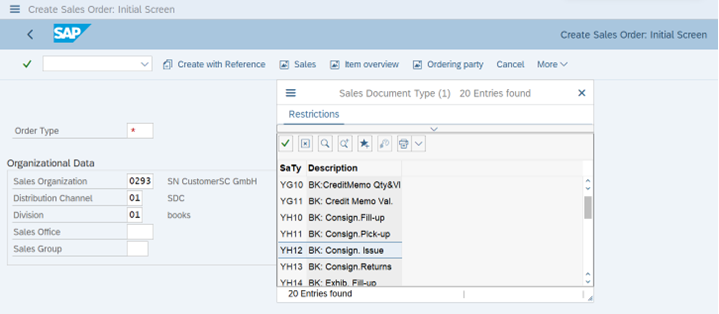
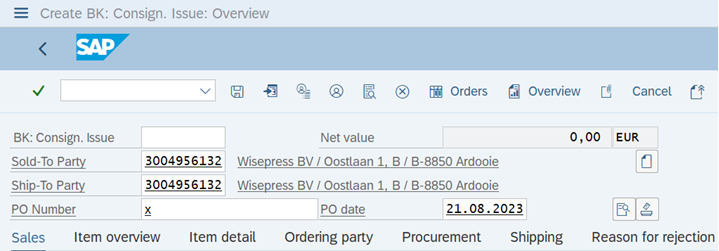
In the order screen, please input in the header: 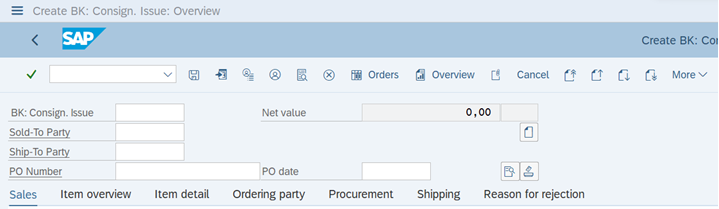
Sold-to Party: 3004956132
Ship-to Party: will be automatically populated, but the correct one is the same as the sold-to party (3004956132)
PO Date: unless instructed otherwise in the Special Task e-mail, insert the date of when the order is being input.
PO Number: exhibition/conference ID, these can be easily found in the spreadsheet’s tab of the Sales Report provided in the Special Task e-mail, we must process 1 invoice per exhibition as previously mentioned.


In the spreadsheet you’ll find the relevant ISBN and quantity of each item sold. Please mind the quantities in Column E; If the quantity shown is 0 (zero), this line must be ignored (no need to add it to the order’s entry).
Example:

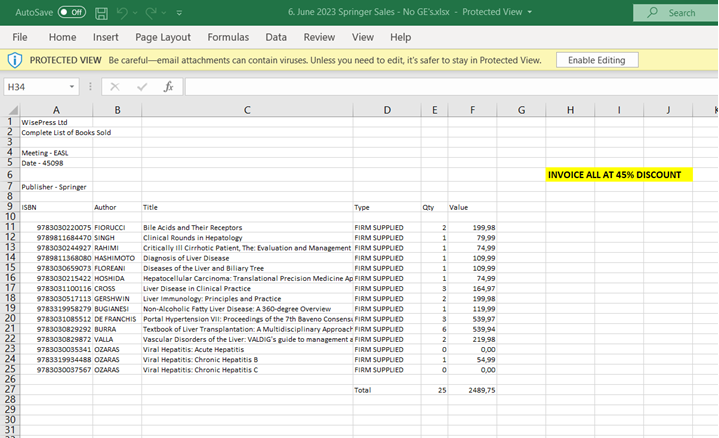
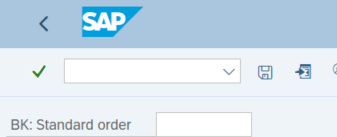
Still on the “Sales” tab, type in the ISBNs and their respective quantities informed in the selected exhibition tab (as shown above) now on MPS. ISBNs must be added to the field “ID Code” and the quantity must be added to the field “Order Quantity”:



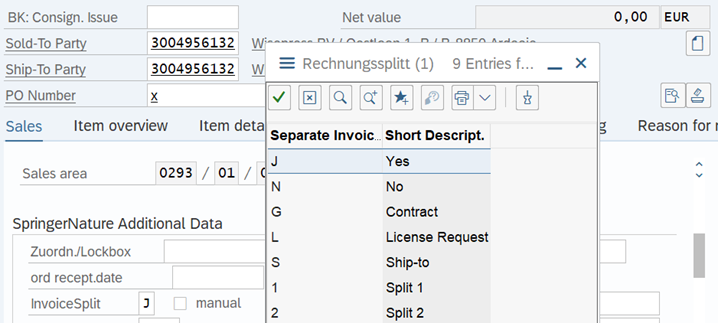
Now scroll down on the “Sales” tab and if it’s not already selected so, choose J (yes) on the InvoiceSplit field.


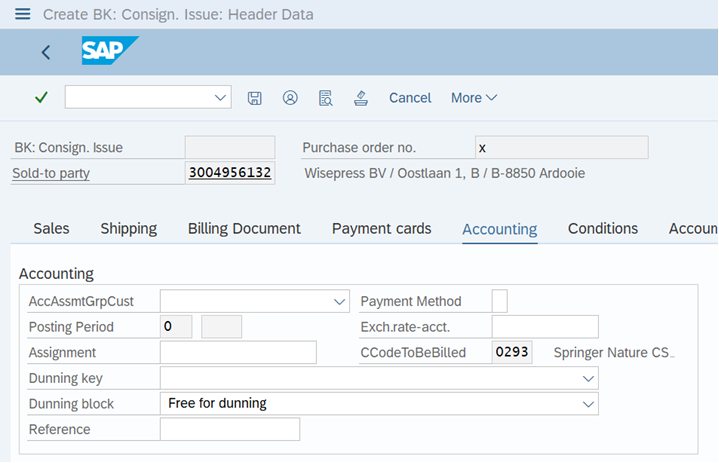
Go to header by clicking in the button “Display doc.header details” and then choose the Accounting Tab
First:

And then:
Here please enter in the field “Assignment” the exhibition code (the same one informed on PO Number).


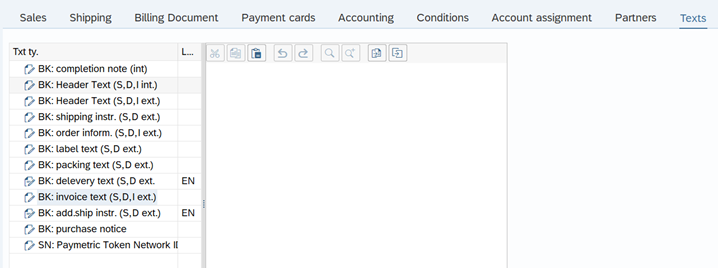
Still in the header, choose the “Texts” tab.
Here please choose BK: invoice text and in the field to the right, type in the exhibition/conference code (same as the PO number).


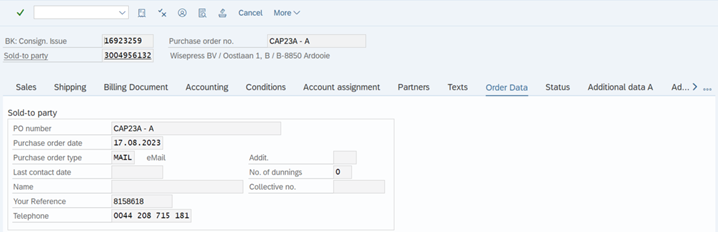
Still in the header, select the tab “Order Data”
Enter the Freshdesk Ticket ID (which will be available in the subject of the Special Task e-mail) in your created order in the field “Your Reference”, as shown below:
Still in the header, select the tab “Conditions”
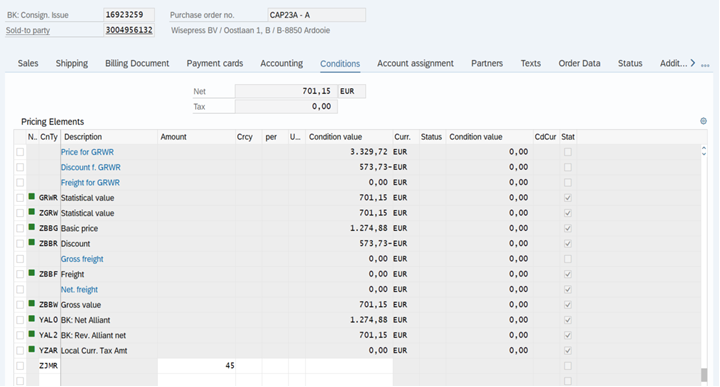
Here we’ll add the order discount (ZJMR). But firstly, we must know how much:
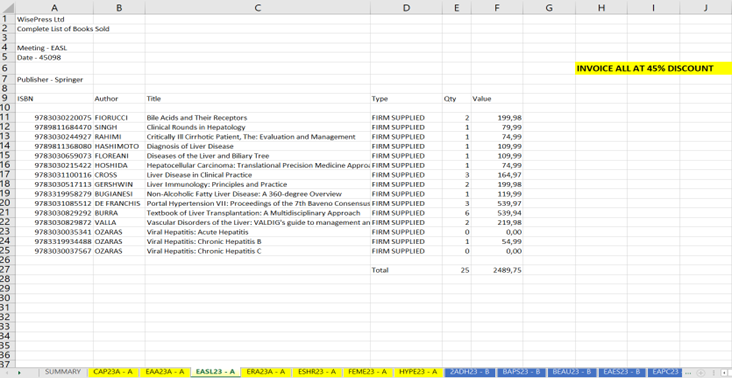
If the exhibition in reference for this order entry has a YELLOW TAB, the discount applied will be 45%.
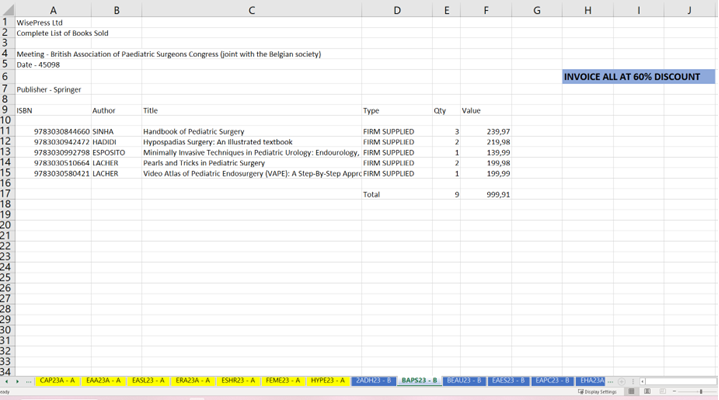
If the exhibition in reference for this order entry has a BLUE TAB, the discount applied will be 60%.
This information is available in the Sales Report and is easily identifiable as it’s also mentioned in each document, see below:
Example of a YELLOW TAB exhibition (45% discount):
Example of a BLUE TAB exhibition (60% discount):
Now that the information about the discount’s amount is clear, please add it to the order. Scroll down to the bottom of the list and type in “ZJMR” on the “CnTy” field or pick it from the dropdown list, then proceed to type in the discount’s percentage (45 for yellow tabs or 60 for blue tabs) and click “Enter”.
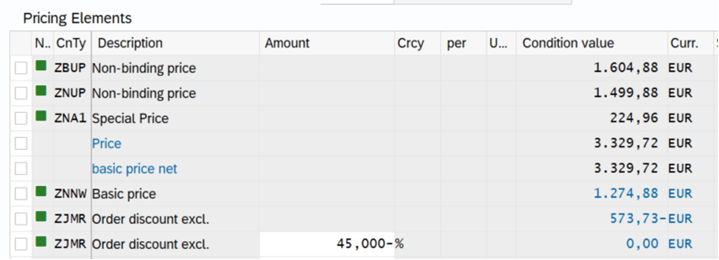
Once you click enter, it should appear as accepted by the system, as below (please ensure to validate this):
Once these steps on the “header” are finished, go back (by clicking the “Back” button on top of the MPS screen or pressing F3 on the keyboard) to the initial screen of the order, in the “Sales” tab and set:
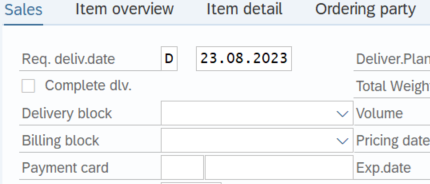
Delivery block: “Y3 ROW: Exhibition” and
Billing block: “Z0 others”
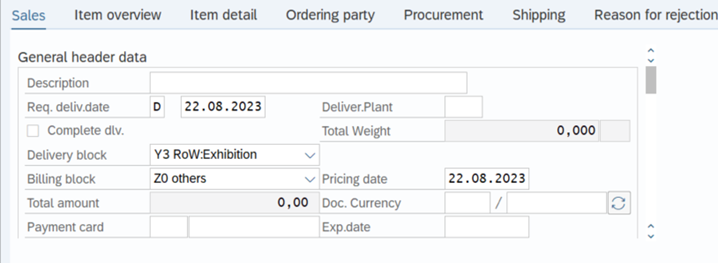
Click “Enter”, save the order by clicking the floppy disk icon or typing Ctrl+S in your keyboard and keep its number, which will appear at the bottom of the page if everything’s successful.
When all the requested orders in the Sales Report are processed, report back by e-mail with a spreadsheet containing the exhibition codes and their respective order number. Here’s an example:
IMPORTANT REMINDER: The Freshdesk ticket must be kept “on hold”, do not set it as “Resolved”. This will be done later by SCNCS 2ND level.
2nd Part: Order conference and release by 2nd level CS
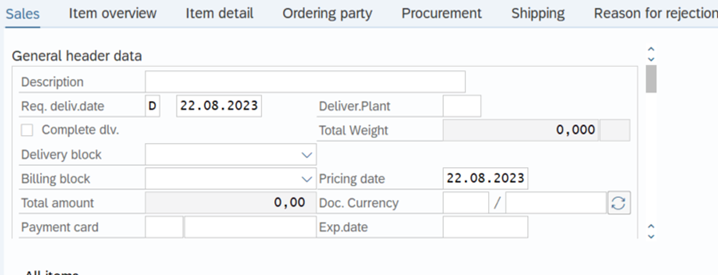
IMPORTANT NOTE FOR SNCS HD: Due to the annual price changes on April 1st, it’s important to give instructions for Straive to adjust the pricing date 30.03.[YEAR] for reports of the previous months (March in particular) that have been received after this date. This must also be clearly mentioned in a note in the Freshdesk Ticket.
The pricing date is adjusted in the “Sales” tab on the first page of the order:
Once Straive sends the confirmation by email that all orders have been input, proceed to check one by one on MPS.
It’s necessary to open the order on the change mode transaction to process the stock availability check as the last step.
Check the following fields:
The PO Number field has been entered correctly (with the exhibition code).
The pricing date is correct according to the instructions.
If the number of lines in the Sales Report spreadsheet matches with the number of lines input on MPS.
If the discount has been correctly applied in the header (tab “Conditions”).
If the Freshdesk ticket has been correctly informed in the header (tab “Order Data”).
Make a sample validation for the quantities.
If the stock quantity is enough (this will be described in detail hereunder).
How to make the availability check for stock on all order lines:
This procedure is very important, because if the quantity of the ISBN’s order line isn’t available (meaning that there’s enough stock booked on the Consignment account), an invoicing of this order line is either not possible at all or only a partial invoicing will be done.
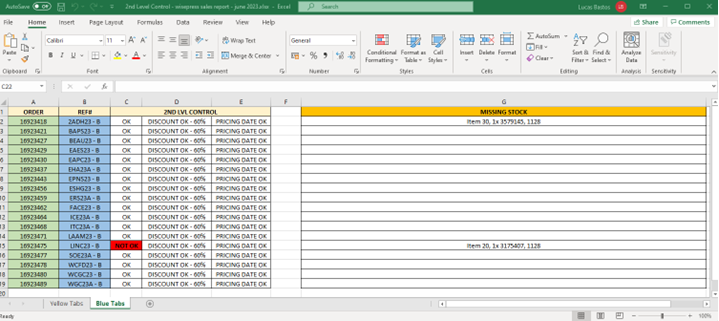
OPTIONAL: as a good practice it’s valuable to keep a simple control spreadsheet of the order conference and save it on Freshdesk for future evaluation, if needed be. This 2nd level control spreadsheet is added to this document in “Related Documents” (pg. 1).
The consignment order must be open change mode transaction (VA02).
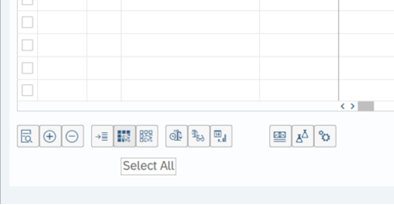
Select all lines by clicking the “Select All” button in the bottom of the page:
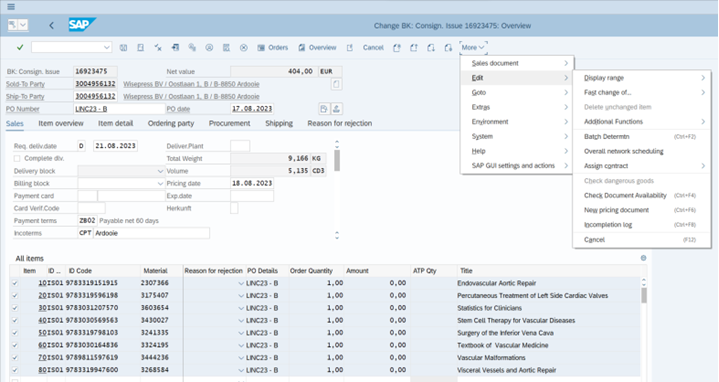
With all lines selected, proceed to the page Menu, select “More”, then “Edit” and finally click on “Check Document Availability”, or simply enter the Ctrl +F4 on your keyboard.
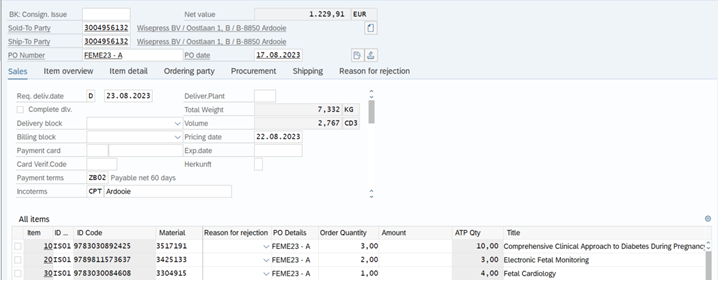
If everything goes well, this action will populate the column “ATP Qty” with the stock levels available for this consignment account in the system. Check line by line comparing the column “Order Quantity” with it and make sure the value is equal or lower than the quantity in the column “ATP Qty”. If everything’s correct, proceed to the last step of removing the order blocks.
Example of an order that has enough stock:
However, if there’s not enough stock in the system for a title, when you process the “Check Document Availability” function mentioned in page 13, a pop-up screen will appear (as exemplified below).
In a document or in the Control Spreadsheet, make note of the position (“Item” field), the “Material” and the “Plant”.. Like so:
Order 16923475:
Item 10, 2x 3502079, Plant 1128
You’ll use it later as described in page 16.
Click on the button “Continue”. Several pop-ups may appear if stock is lacking for other ISBNs in the same order. If this happens, prepare a list of all orders that need adjustment in this sales report so you’ll send only one email to IT (how to do this process will be detailed in the next topic of this document) per sales report.
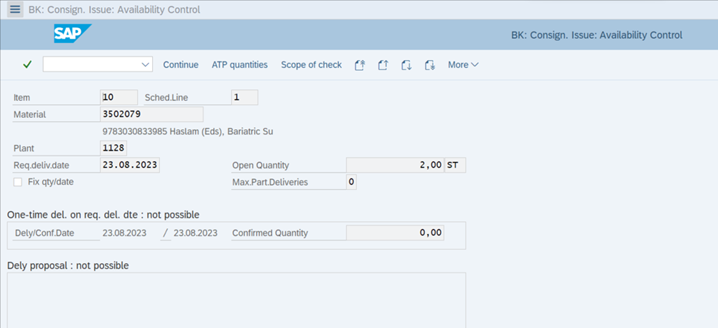
Check the quantity of this ISBN that’s missing and register it. Repeat this step for all ISBNs that show this same issue.
If everything is correct and the stock quantity of all ISBNs are enough, remove the Delivery and Billing blocks and save the order.
Stock adjustments – Consignment booking by IT
If by any chance when you execute the stock checking process
IT, Torsten Sperk or Gesa Haamann, will need a list of
Here’s a sample mail of how we should make this request. The group email of IT-SAP (Books) is itbooks@springer.com.
Hello, Torsten/Gesa,
Could you please make the following addition for Consignment account 3004956132, regarding the Sales Report for June 2023?
Order 16923475:
Item 10, 2x 3502079, Plant 1128
And could you please confirm back briefly once done?
Thank you,
---
Lucas Bastos
Once IT finishes this request, they’ll usually confirm by email already with the invoice number described, which means they release the order blocks themselves and process the billing:
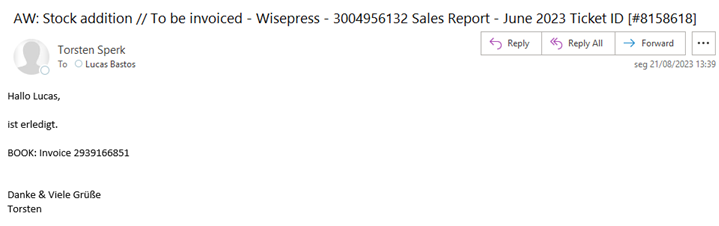
Nevertheless, it’s a good practice to keep these orders that require stock adjustments in your follow-up, in case the message gets lost.
Currently we archive all these emails in the “BTU-HOTLINE” (Trade ROW Books’ common Outlook inbox), inside the folder “Consignment”, subfolder “consignment, Wisepress”:
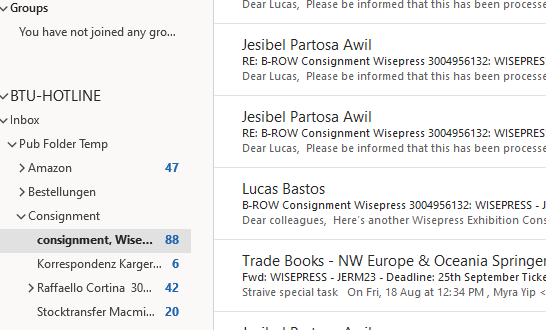
Once everything is finished, you can communicate to the sales manager that it has been processed and set the Freshdesk ticket as “Resolved”.
In Use For
| Freshdesk | In use for | Additional Action |
Trade_Books ROW Straive | x | |
Trade_Books_ROW_STRAIVE | x | |
| Trade_Asia_Books_Straive | x |
Contacts
For questions or feedback please send an email to lucas.bastos@springernature.com